
Property data export review helps a rental team check that a downloaded file matches the task it is meant to support. An export is a copy of selected information at a particular point; it is not automatically a verified report or the current operational source. Start by identifying the purpose and intended recipient.
Review the reporting workflow through RentalDesk features and confirm available export options during a demonstration. Prepare fictional examples where possible. A useful review checks the file’s meaning and contents before anyone relies on its appearance or sends it to another person.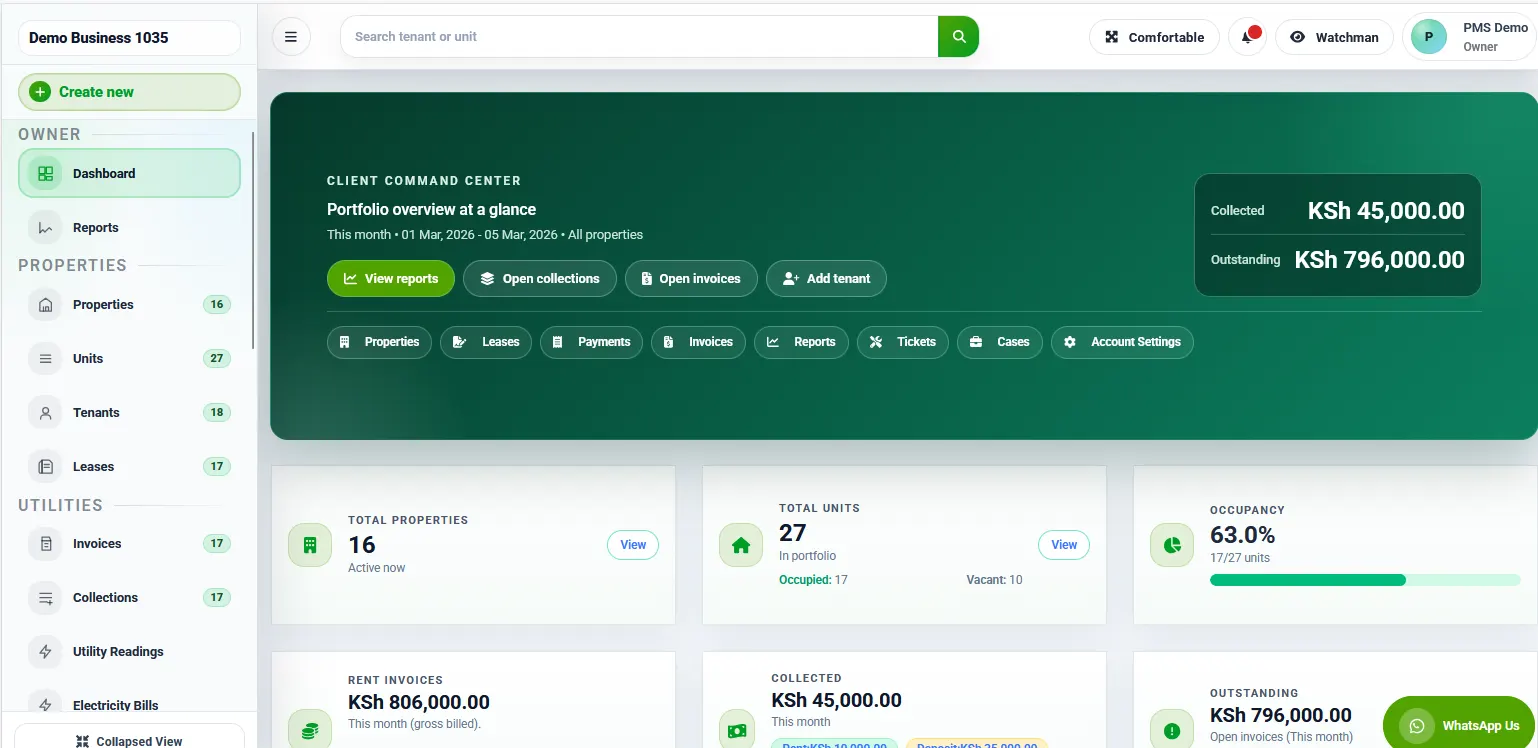
Property data export review: Define the question the file should answer
Write down the intended property scope, period and activity. A list for one building is different from a portfolio-wide review. Confirm whether the task requires a current snapshot or a defined date range. Ask the software provider to explain the available selection controls rather than assuming every report handles dates identically.
Property data export review: Check the selected information
Review the columns and records included. Remove information that is unnecessary for the authorised purpose using the approved process. A file intended for an operational update should not automatically include unrelated tenant details. Keep the original source reference so an authorised reviewer can trace a question without reconstructing the export from memory.
Property data export review should distinguish a missing field from a genuinely blank value. Do not fill empty cells with guesses to make the file look complete. Record the question and identify who can confirm it. If the source requires correction, follow the supported workflow rather than changing only a private copy.
Property data export review: Record the version and timing
Label the file using the organisation’s convention, including the property or purpose and preparation date where appropriate. Explain which approved version should be used. A later operational update may not appear in an earlier export, so keep the timing understandable when someone compares two files.
If a business is exploring a new portal or data workflow, Zama’s business systems information may be useful for separate research. Confirm scope and requirements directly. Linking to another provider does not establish a data integration or authorise sending property records to that provider.
Property data export review: Verify the recipient and sharing method
Check the intended recipient at the point of sharing, not only when the request first arrives. Use the organisation’s approved channel. Review attachments and links as well as the message itself. A correct explanation can still accompany an outdated file or a copy containing information outside the requested scope.
Property data export review: Assign follow-up questions
Give every unresolved item an owner and a next action. Distinguish a request for explanation from authority to change the source record. If a revised file is produced, identify what it replaces and follow the normal retention process. Avoid leaving several differently edited copies in circulation without a clear current version.
Property data export review: Example: the export is recent but the period is wrong
A colleague downloads a file today, but the selected period belongs to a previous request. The file is recent while its scope is unsuitable. Property data export review catches this before sharing: the preparer compares the selection with the request, generates the appropriate version and checks the affected records again.
Property data export review: Does an export replace the main system?
Not automatically. Agree which record is authoritative and how approved corrections return to it. Personal spreadsheet edits can create conflicting answers if they never reach the operational source. Confirm the supported process with the provider and keep the team’s responsibilities clear.
Review checklist for property data export review
Review one sample row against the authorised source and explain what its fields mean. Then check a row containing an unresolved question. This small exercise can reveal misunderstood columns or assumptions about blank values. It does not replace the broader review, but it tests whether the preparer and recipient interpret the same information consistently before the file becomes part of another workflow.
Read the RentalDesk management guides. For help preparing a property data export review demonstration, call 0725345345 with your reporting purpose and current workflow.
Define the purpose of a property data export review
Before opening an exported file, write down the question it is meant to answer. A manager checking a single building needs a different scope from a colleague comparing several properties. A recipient investigating an exception may need only the relevant rows. The purpose determines what should be included and provides a reference when someone asks why a particular field or period was selected.
Use a fictional example to make the decision clear. A colleague requests a list of units requiring an administrative follow-up at Building B. The preparer should confirm what follow-up means, which date the list represents and who will use it. Without that discussion, the file could contain every unit in the portfolio, unnecessary contact information and records that do not relate to the question.
Property data export review should begin with this small brief rather than with a file that happens to be easy to generate. When the purpose changes, revisit the scope. A report prepared for internal checking may not be suitable for forwarding to an external recipient. Treat a new audience as a reason to review the content and sharing arrangement again through the approved process.
Property data export review: Record the selection before generating the file
Document the property, reporting period, relevant status filters and any exclusions that materially affect the result. Use the labels your actual software provides and confirm their meaning with the provider where necessary. Do not assume that two similarly named filters behave identically. A short note about the selection helps a reviewer reproduce the intended scope and explain differences between files.
Be especially careful with dates. A file may represent current records, activity during a period or the position at a particular point in time. Those are different questions. Write the intended interpretation in plain language before comparing totals or counts. If the export cannot produce the required view directly, identify the limitation rather than presenting another view as if it were equivalent.
For property data export review, keep a record of any manual processing performed after export. Removing a duplicate heading, sorting rows or adding a reviewer column may be reasonable, but the steps should be understandable. Preserve the original export in the team’s approved location when appropriate. The reviewed working copy and the original should remain distinguishable so a later question can be traced to the correct version.
Property data export review: Check headers and identifiers before reading individual rows
A property data export review is easier when the reviewer first establishes what each column means. Identify the property and unit fields, date fields, status labels and any values used in the report’s main decision. Do not rely on column position alone. Export layouts may vary with selected options, and a column that appeared in one place previously may not appear there in another file.
Check that identifiers have survived the export and spreadsheet opening process. References containing leading zeros can be misread as ordinary numbers by some workflows. Long reference strings can also become difficult to recognise in a narrow display. Compare representative values with the source record and confirm that the saved working file preserves the identifiers the receiving team needs.
Use a small sample covering different record types. Include a simple row, an exception and a record whose label resembles another property. Sampling does not prove every row is correct, but it can reveal a formatting or selection problem early. If the sample exposes a systematic issue, resolve it before proceeding with a detailed review of the rest of the file.
Property data export review: Distinguish a missing value from a valid empty field
An empty cell can mean several things: information was not recorded, the field does not apply, the export omitted it or a selected record is incomplete. Do not assign one explanation to every blank. Identify which missing values affect the purpose of the report and refer those questions to the person responsible for the underlying information.
For example, a list intended to coordinate follow-up may not be usable if the responsible staff member is missing. Another optional field might be irrelevant to that task. The property data export review should focus attention on gaps that change the recipient’s interpretation or next action. This keeps the check practical while avoiding a false impression that every blank represents the same level of concern.
When correcting a value, use the approved source workflow rather than quietly making an unsupported entry in the exported file. If a temporary explanatory note is needed, label it clearly. The recipient should be able to distinguish source information from a reviewer’s comment. That distinction becomes important when the file is compared with a later export or used to investigate a discrepancy.
Property data export review: Reconcile the scope with a sensible cross-check
Choose a cross-check that matches the report’s purpose. For a unit list, a count by property may help reveal an omitted building or an unexpected selection. For an activity report, compare a few known records from the intended period. Explain any exclusions before treating a difference as an error. Different scopes can produce different results even when both files were generated correctly.
Avoid repeatedly changing filters until a result matches an expectation. First understand why the difference exists. Check the selected period, property scope and status definitions. Then inspect a representative record that appears in one view but not the other. This approach creates an explanation that another colleague can follow instead of a file that merely looks plausible at a glance.
Property data export review should also distinguish data quality questions from presentation issues. A clipped column may hide a value without changing the underlying data. An incorrect source reference is a different problem. Record which type of issue was found and who should resolve it. This prevents a formatting correction from being mistaken for a completed investigation of the source records.
Property data export review: Review the recipient and sharing scope
Confirm the intended recipient and the information they need for the stated task. A familiar email thread is not a substitute for checking the current distribution. People may have been added to a conversation for a separate purpose. Use the organisation’s approved sharing process and avoid including columns that are unnecessary for the recipient’s role in this specific review.
If several recipients need different information, consider whether separate appropriately scoped outputs are clearer. One broad file may be convenient for the sender but unsuitable for every person receiving it. The decision should follow the team’s established policies and responsibilities. Keep the review focused on the actual contents and audience rather than assuming that a password or a familiar filename resolves every sharing question.
Before sending, open the exact attachment or shared copy the recipient will receive. Check its title, worksheet names, visible rows and any explanatory notes. A correct working file does not help if an older attachment is selected by mistake. Property data export review includes this final version check because the last handoff can introduce an error after the underlying information has been carefully reviewed.
Property data export review: Label the file so the next person understands it
A useful filename can identify the subject, property or portfolio, reporting period and version. Choose a convention the team can apply consistently. Avoid names such as final-new-latest, which become ambiguous as soon as another correction is made. The visible label should help someone distinguish a draft review copy from an approved output without opening several similar files.
Add a short cover note where the recipient needs context. Explain the purpose, scope, relevant date and any unresolved limitation. Keep the note factual and brief. If the report excludes a property or record category, say so explicitly. The recipient should not have to infer the scope from a total, a worksheet name or a private conversation with the preparer.
When an updated version replaces an earlier file, identify that relationship clearly through the approved communication process. Tell the relevant recipients which version should be used and what materially changed. Do not assume everyone will notice that the attachment name is different. A reliable review process includes managing the interpretation of the file after it leaves the preparer’s screen.
A worked example of property data export review
Imagine a manager asks for a current follow-up list for two fictional buildings. The preparer records the agreed properties and the meaning of follow-up required. After generating the file, the reviewer finds a third building included in the selection and notices that two unit references display without their leading zeros. These are separate issues with different corrective actions.
The preparer corrects the scope and regenerates the output. The team then checks how the reference column is opened and saved in its working tool. A new sample confirms that the intended identifiers remain readable. The reviewer compares the property counts with the selected source view and records the limitation that one unresolved source question remains with its named owner.
Before sharing, the preparer checks the recipient, removes fields outside the agreed purpose through the approved workflow and opens the final copy. The cover note identifies the two buildings, the relevant date and the open question. This example shows how a review can improve both the data and the recipient’s understanding without making unsupported assumptions about what the file proves.
Questions to test during a software demonstration
Ask the provider to demonstrate the export workflow relevant to your team using fictional records. Request a specific property selection and a clearly defined reporting period. Check the available formats, column options and labels. Confirm whether the workflow shown is supported by the plan and configuration under discussion rather than assuming every example represents a standard feature of every account.
Include an exception in the demonstration. For example, ask what happens when a required source field is empty or when a record changes after a file has been generated. The purpose is to understand the boundary between the exported snapshot and the current system view. Write down any manual review steps your team must perform before relying on the output.
Property data export review is not completed by the export button itself. Staff still need to understand the purpose, scope and recipients. Ask who will maintain the team’s review checklist and how new colleagues will learn it. A short guided exercise with a fictional file can be more useful than a long instruction document that nobody has practised following.
Frequently asked review questions
Should every exported file be checked in the same way?
Use a consistent core checklist, then adapt the detailed checks to the purpose. A narrow internal list and a report for a wider audience may need different levels of review. The core questions remain the same: is this the right scope, can the information be understood, are important exceptions visible and is the intended recipient receiving the correct version?
What if the export disagrees with a screenshot?
Compare the dates, selected properties, filters and meaning of each view before drawing a conclusion. The screenshot may show current information while the export represents an earlier selection. Identify a specific record and trace the difference through the approved source. Keep the explanation with the review rather than changing the file solely to make two displays appear identical.
Can a reviewer correct the source information directly?
That depends on their assigned role and the team’s approved workflow. A review task does not automatically grant authority to alter records. Where a correction is needed, route it to the appropriate person and confirm the outcome before regenerating the file. Keep review comments separate from confirmed source values so the recipient can understand what has actually been changed.
Finish with a clear release decision
At the end of a property data export review, record whether the file is ready for its stated purpose, needs correction or requires another decision. Name the unresolved issue and its owner when the file is not ready. Avoid vague labels such as checked when important questions remain, because the recipient may interpret that word as approval to use the entire output.
Keep the review record proportionate and accessible to the relevant team. It should explain what was checked, which version was released and where remaining questions belong. The result is a file that another colleague can understand and use with its actual limits in view, rather than a polished spreadsheet whose selection and meaning must be reconstructed later.